FamilyCalm app icon

FAMILYCALM · iPHONE & iPAD

Less screen time.
More time together.

FamilyCalm helps you set clear boundaries for your family’s digital life. Bring screen time, app breaks and family devices together in one place.

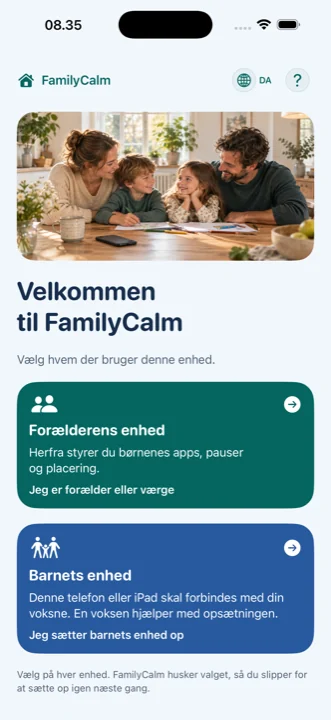
FamilyCalm’s Danish welcome screen with guided selection of parent or child device
A look inside FamilyCalm

MORE ROOM FOR WHAT MATTERS

A clear plan.
A calmer everyday life.

01 / SCREEN TIME

Breaks that fit
your family’s routine.

Choose apps, days and times. Review the plan before sending it to your child’s device. During an active break, your child can ask for extra time.

02 / FAMILY DEVICES

One place for
your family’s overview.

Connect your children’s iPhones and iPads with a private QR invitation. View saved plans, the next break and available battery status with its measurement time.

03 / CONTACT & BOUNDARIES

Stay in touch.
Set clear boundaries.

Send messages, choose supported browsing rules and use optional location sharing with permission. Device acknowledgements make the status clear.

WATCH FAMILYCALM IN USE

Get started.
Step by step.

A silent video guide in Danish. See setup, connecting devices and creating your first pause.

2:04 min. · No audio · Danish text · Updated 28 October 2026. Illustrated app screens with example data.

Play, pause and use full screen as you go.

Read the guide and find chapters
  1. Prepare both devices with FamilyCalm and internet access. An adult follows the entire setup.
  2. On the parent’s phone: select the parent device, create a parent code and verify your recovery email.
  3. On the child’s device: create the parent code and approve Screen Time access in Apple’s dialog. Location is optional.
  4. Select apps on the child’s device. Name and save any unnamed apps before continuing.
  5. Same Apple Account: choose the same account on both devices and keep the child’s app open. Add the child through iCloud in the parent’s add-device guide.
  6. Different Apple Accounts: enter the parent’s Apple Account email on the child’s device, create the private QR invitation and wait for the code. Then scan it from the parent’s add-device guide.
  7. Wait for confirmation on both devices. Verify the recovery email on the child’s device, review the checklist and open My Day.
  8. On the parent’s phone: open the child’s page and choose the child’s device, apps, days and times. Review the plan before sending.
  9. Sent does not mean completed. Wait for the child device’s receipt and check the pause on that device. Overview shows the last confirmed status.
  10. Find devices and pauses on the parent’s phone. Use the question mark in the app or contact Bericode for help.
FamilyCalm’s illustration of a family together at the table

BUILT AROUND THE FAMILY

Make room for
what brings you together.

Screens are part of everyday life. FamilyCalm gives you tools to plan breaks and make family agreements easier to understand.

Setup is completed together with an adult. Parent access is protected with a passcode, and Apple’s Screen Time access is approved on the device.

QUESTIONS ABOUT FAMILYCALM?

Take your
next step.

Find answers on the support page or contact Bericode.